Here’s the quick fix for the exception: “Failed to bind to address https://localhost:xxxxx (System.IO.IOException)”.
net stop winnat
net start winnat
Note: Run as admin.
The issue most likely is related to Kestrel failing to bind to a network address, which is often caused by a port conflict.
So if you’re sure there aren’t other applications that have claimed the particular port, restart the WinNAT service.
Update [dt. 2026-04-08]
This bit is a quick hack for Mac.
Use the below command to list which process has captured the port. It’ll list the process id.
Replace <port number> with the port number.
lsof -i :<port number>It’s likely that it’s the same process you’re trying to execute which hasn’t terminated.
Use the below command to kill that process to free up the port.
Replace <process id> with the listed process id.
kill -9 <process id>Update [dt. 2026-03-01]
I encountered this error again and it wasn’t as easy a fix this time when working on a .NET project with multiple start up projects. I have IIS Express and Kestrel launch profiles defined and I did for my curiosity switch between the two.
Btw, don’t use IIS Express if you have Kestrel or even IIS; no real point.
Okay back to the issue at hand…
Most common causes why the app cannot bind to http://localhost:xxxxx:
- The port is in an excluded/reserved range.
- Another process is already using the port.
- HTTPS/SSL binding conflicts.
Practical fixes (in order)
1) (The above quick fix) Restart WinNAT service
Still the likeliest and quickest.
net stop winnat
net start winnat
Note: Run as admin.
2) Delete “applicationhost.config” inside the “.vs” folder
Magic of using IIS Express I believe:
You’ll find an “applicationhost.config” here: <project root>\.vs\<project>.slnx\config\.
Delete that!
3) If possible, kill the process capturing the port
If applicable to you, stop IIS/IIS Express first and check if your app runs before proceeding.
Run this in an admin PowerShell or Command Prompt:
netstat -ano | findstr :xxxxxIf any line appears, note the PID and then:
tasklist | findstr <PID>If a process owns the port, stop it and try again.
4) Check Windows excluded port ranges
Use this command to see reserved TCP ports:
netsh interface ipv4 show excludedportrange protocol=tcp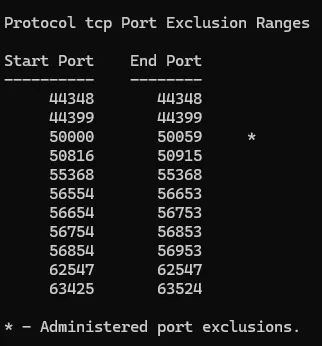
If your port is excluded, Windows will reject binding.
You might want to try (step 8) Use a port outside those ranges or (step 7) reboot to clear some dynamic reservations.
5) Run elevated when HTTPS is enabled
If launchSettings.json includes https://localhost:xxxxx (or sslPort), try running elevated:
- Right‑click Visual Studio (or
dotnet runterminal) → Run as administrator. - This can unblock HTTPS binding on some ports.
6) Temporarily disable HTTPS in the profile
If HTTPS is not required immediately, simplify applicationUrl:
"applicationUrl": "http://localhost:xxxxx"instead of:
"applicationUrl": "https://localhost:xxxxx;http://localhost:xxxxx"This removes SSL/TLS binding for that port and often avoids the error.
7) Restart Visual Studio or Windows
If stale debug sessions are stuck, a clean restart can clear temporary conflicts/exclusions.
8) Give up, use a different port
It’s a pain to have to restart a PC in the middle of work.
Change the port your app listens on in Properties/launchSettings.json:
{
  "profiles": {
    "MyApp": {
      "commandName": "Project",
      "applicationUrl": "http://localhost:5000",
      "environmentVariables": {
        "ASPNETCORE_ENVIRONMENT": "Development"
      }
    }
  }
}
Replace xxxxx with 5000 (or any unused port), restart, and verify. If it works, xxxxx is blocked/reserved.
refs:
- https://stackoverflow.com/questions/77456493/failed-to-bind-to-address-an-attempt-was-made-to-access-a-socket-in-a-way-forb
- https://ardalis.com/attempt-made-to-access-socket/
- https://github.com/dotnet/core/issues/2001
- https://elanderson.net/2019/12/asp-net-core-an-attempt-was-made-to-access-a-socket-in-a-way-forbidden-by-its-access-permissions/