Consider this method as a quick hack; this is by far meant for professional level fine tuning. Best advice for professionals is to use a reputed colorimeter. That said, if you’re still interested in a quick fix, here we go. And yes, this is specific to Windows OS.
For this to work, ascertain the issue isn’t a hardware issue:
- it’s not the cable
- not the graphic card nor its drivers
- not the coating of peanut butter on the screen
For a reference screen, your mobile device will suffice. On your reference device, remember to turn of any settings like night light, bed time mode, eye comfort, adaptive tone, etc.
Also, it’s best to do this during the day, morning time before the yellow of sun kicks into your room. Or at least use white light.
Open up these 2 color reference images on both the screens:
- Pick the gray card from here: https://en.wikipedia.org/wiki/Gray_card
- Pick any colour test card from here: https://en.wikipedia.org/wiki/Test_card
Check them on the reference device first; you should be able to discern between each shade. It’s also about preference. So, you should like how each colour appears. If you like, you might spend some time setting up your reference device’s colour profile as per your preference first, that includes the brightness and contrast as well.
Back to the flow!
The gray first, cause in the calibration wizard, we’ll adjust the gamma first. And the gamma does have an effect on colors as well.
Now, in my case, as per the wizard, the gamma set was too high but if I followed its instructions, I wasn’t able to discern between the color tones in the gray card. So, try and strike a balance but the test cards can veto.
Let’s punch in:
- Win + S ->
Calibrate display color
There you go, you should be able to follow through the rest. Maybe split the screen with reference image on left and the calibration wizard on right. For the gamma settings, use the gray card and then for RGB colour levels, use the colour card. And you can move back and forth between the gamma and RGB levels in the wizard.
Addressing the bug in windows
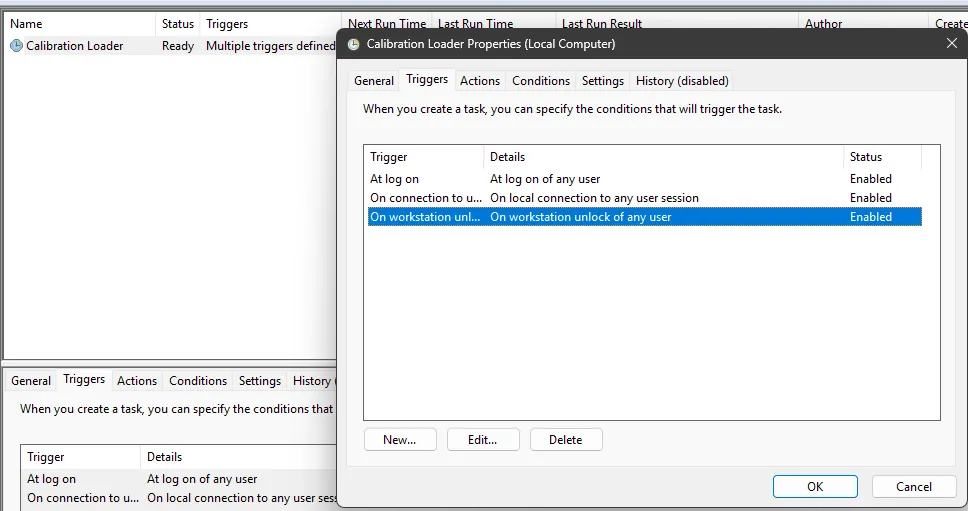
The following steps should be performed only if your custom colour profile is not being loaded after your PC restarts or wakes from sleep.
- Win + R -> Enter
taskschd.mscOR Win + S ->Color Management - Navigate to Task Scheduler Library -> Microsoft -> Windows -> WindowsColorSystem
- Right click on
Calibration Loader->Properties - Open the
Triggerstab -> Create aNewtrigger - Select
On workstation unlock, ascertain theEnabledcheckbox is checked -> ClickOK