Let’s dive in.
1. Open Default Apps Settings
- Press
Windows + Ito open Settings. - Navigate to Apps > Default apps.
2. Choose Default by File Type
- In the search field under Set a default for a file type or link type, search for
.sqlin the list.
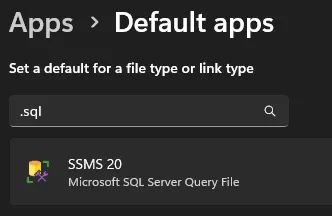
3. Change the Default App
If there’s already a default app, it’ll show that (as in the screenshot above, mine was SSMS).
- Click the current default app to get a pop-up asking you to change it.
- Select Visual Studio Code from the list.
If VS Code is not listed (OR you wish to select another app)
- Click More apps > Look for another app on this PC.
- Browse to the VS Code executable, typically located at:
C:\Users\<YourUsername>\AppData\Local\Programs\Microsoft VS Code\Code.exe- Azure Data Studio’s’s path may be:
C:\Program Files\Azure Data Studio\azuredatastudio.exe- Confirm the Change
- Once selected,
.sqlfiles will now open in Visual Studio Code by default.
You can revert to it anytime using the same steps.