In version control systems like Git, maintaining a well-defined .gitignore file is crucial for keeping your repository clean and efficient. This file specifies files and patterns that Git should exclude from tracking. However, there can be situations where files mistakenly get added to the repository and then subsequently listed in the .gitignore file. This creates a misalignment, where the files remain tracked despite being designated for exclusion. :(
Steps to Fix the Discrepancy:
-
Commit All Changes (IMPORTANT):
Before proceeding, ensure all your changes, including the updated
.gitignorefile, are committed to the local repository. Use the following command:git commit -m "Updated .gitignore file"This ensures that the changes to the
.gitignoreitself are properly tracked. -
Remove Tracked Files from the Index:
The next step involves removing the unwanted files from the Git index while preserving them on your local disk. This is achieved using the following command:
git rm -r --cached .Explanation:
git rm: This command removes files from the Git index.-r: This flag enables recursive removal, meaning it removes files and subdirectories within the specified directory.--cached: This critical flag instructs Git to remove the files from the index only. The actual files remain on your disk, ensuring they are not accidentally deleted..: The wildcard symbol denotes all files within the current working directory.
Alternative:
If you only need to remove a specific file instead of all files matching a pattern, use the following command:
git rm --cached <filename>Replace
<filename>with the actual name of the file you want to exclude. -
Optional Verification:
To confirm the removal from the index without actually deleting anything, you can leverage the
-nor--dry-runflag:git rm -r --cached --dry-run .This will list the files that would be removed without modifying the repository.
-
Re-add Necessary Files:
With the unwanted files removed from the index, use the following command to re-add the desired files to Git tracking:
git add .This will stage the intended files for the next commit.
-
Commit the Changes:
Finally, commit the changes to your local repository using the following command:
git commit -m "Fixed .gitignore alignment"This commit permanently reflects the updated
.gitignoreconfiguration and removes the unwanted files from Git tracking. -
Push to Remote Repository (Optional):
If you’re working on a remote repository hosted on platforms like GitHub or GitLab, push your changes to reflect the updated
.gitignoreconfiguration:git push origin mainRemember to replace
mainwith the appropriate branch name you’re working on.
Diving deeper
If you wish to purge some files from your entire Git history such that they vanish from all branches and commits, here’s how we’ll go about. First, we’ll need to install a library:
brew install git-filter-repo   # macOS
# or
pip install git-filter-repo    # cross-platform
1. Work on a Fresh Clone
It’s best practice to operate on a fresh clone of your repository to avoid dangling references or local conflicts. Clone your repository with the --mirror flag:
git clone --mirror https://github.com/<username>/<repo>.git
cd <repo>.git
The --mirror option ensures you get all branches and tags.
2. Run git filter-repo
Use git filter-repo to remove unwanted files everywhere in history. For example, to purge .DS_Store and appsettings.json files:
git filter-repo --path-glob '*.DS_Store' --path-glob '*appsettings.json' --invert-pathsExplanation:
--path-globallows glob patterns, so you catch files in any folder.--invert-pathsmeans “remove these paths everywhere.”
Btw, you might get this warning like this:
WARNING: The script git-filter-repo.exe is installed in 'C:\Users\<username>\AppData\Local\Packages\PythonSoftwareFoundation.Python.3.<xx>_<xxxxxxxxxxxx>\LocalCache\local-packages\Python3xx\Scripts' which is not on PATH.You’ll need to add it to PATH (recommended)
Press Win + R, type sysdm.cpl, and hit Enter.
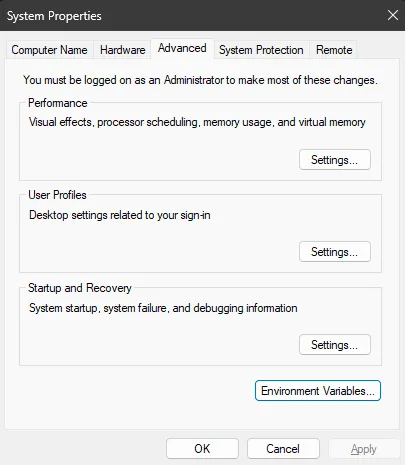
Go to Advanced → Environment Variables.
Under System variables, select Path → Edit.
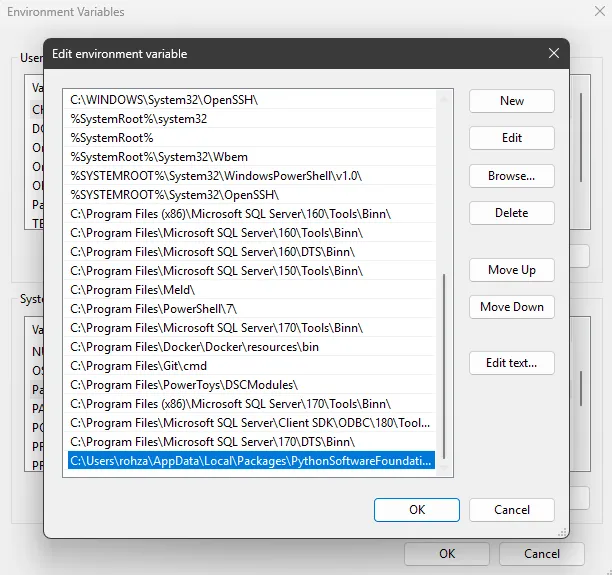
Once added, restart your terminal. Ascertain you’re in the repo root dir.
Try again.
3. Force Push the Rewritten History
Once the history is rewritten, push it back to GitHub:
git push origin --force --all
git push origin --force --tags
⚠️ Warning: This rewrites history. Collaborators will need to re-clone or reset their local repositories.
4. Verify Locally
Run the following to confirm the files are gone:
git log --all -- *appsettings.json
git log --all -- *.DS_Store
If nothing shows, the purge was successful.
5. Clean Up
Finally, run garbage collection to prune any dangling objects:
git reflog expire --expire=now --all
git gc --prune=now --aggressive
This ensures the unwanted files are fully removed from your repository.
Note
- Always add sensitive or environment-specific files (like
appsettings.json,.env,.DS_Store) to.gitignoreearly in the project. - If secrets were ever committed, rotate them even after purging history — assume they may have been exposed.
- Communicate with collaborators before rewriting history, as they’ll need to re-clone or reset their repos.
- Use
git rm --cachedfor simple alignment, andgit filter-repofor full history purges.