1. Use the Correct USB Cable
Make sure you’re using a proper data USB cable. Some USB cables are power-only and won’t allow communication with your ESP32 board.
2. Check Device Manager
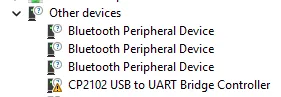
Open Device Manager and look under Other devices.
You may find your ESP32 listed as:
CP2102 USB to UART Bridge Controller
3. Download the CP210x Driver
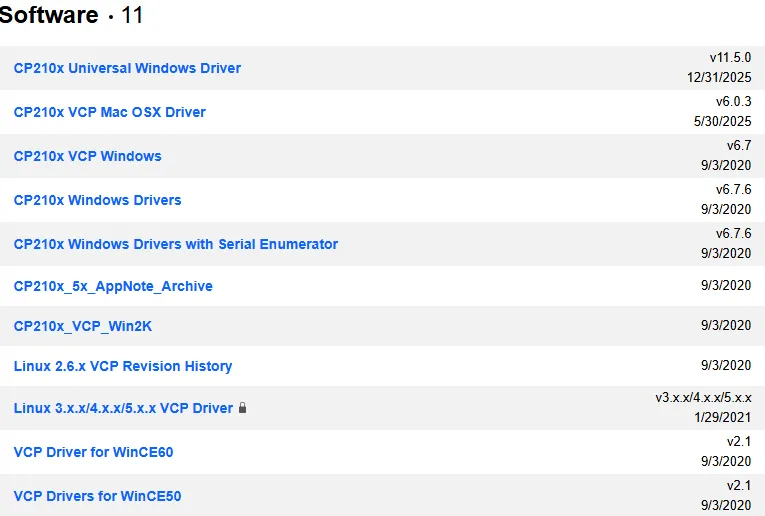
Go to the Silicon Labs driver page: https://www.silabs.com/software-and-tools/usb-to-uart-bridge-vcp-drivers?tab=downloads
Download the appropriate driver for your system:
| Driver | Target |
|---|---|
| CP210x Universal Windows Driver | Windows 10 (v1803+) and Windows 11 |
| CP210x VCP Mac OSX Driver | macOS 10.11 or later |
| Linux VCP Driver | Usually built into the kernel |
Tip: Check the Tech Docs tab for release notes before installing:
https://www.silabs.com/software-and-tools/usb-to-uart-bridge-vcp-drivers?tab=documentation
4. Install the Driver
On extracting the contents you will find a release notes file (eg: CP210x_Universal_Windows_Driver_ReleaseNotes.txt) within which are instructions on how to go about installing the driver.
Follow the OS specific installation instructions therein.
4.1. On windows
For the ‘CP210x_Universal_Windows_Driver’ driver, it’s as simple as:
silabser.inf -> Right-click -> Install
After installation, go back to Device Manager.
Under Ports (COM & LPT), you should now see:
Silicon Labs CP210x USB to UART Bridge (COMx)

Installing nanoFramework on ESP32
5. Install ESP Tool to erase device (Optional)
This is optional, but most likely will come in handy when you want to do a thorough erase of the ESP device. You need to have Python installed and we will have this tool installed via pip.
pip install esptoolAnd now to erase the device.
esptool --port COM7 erase-flashIdentify your COM port from Device Manager (e.g., COM7).
ref: https://docs.espressif.com/projects/esptool/en/latest/esp32/
6. Install nanoFramework Flasher Tool
Install the nanoff tool globally:

dotnet tool install -g nanoffVerify installation:
nanoff --version7. Flash nanoFramework Firmware
Identify your COM port from Device Manager (e.g., COM7).
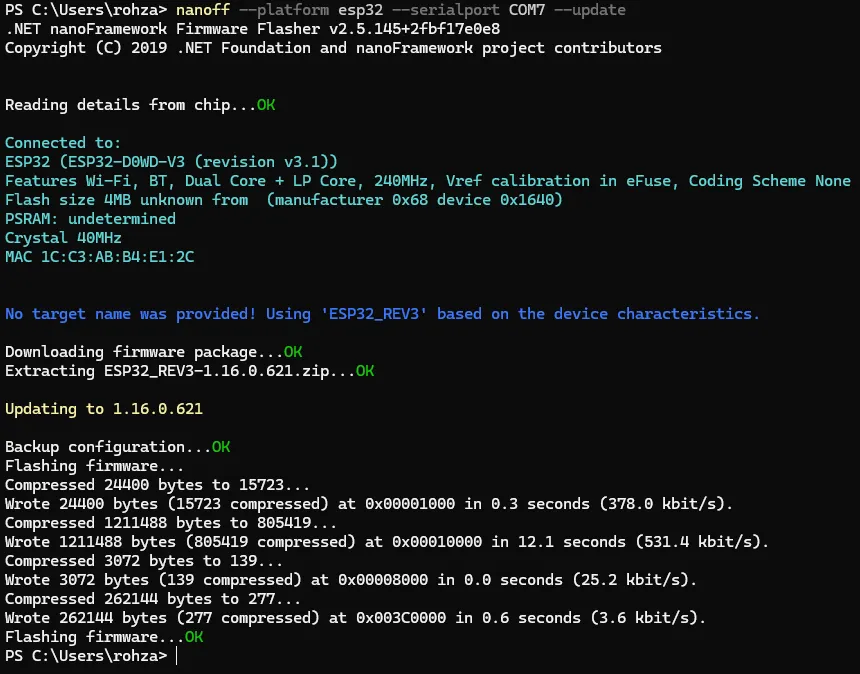
Run:
nanoff --platform esp32 --serialport COM7 --updateReplace
COM7with your actual port.
It might help including --target <ESP_Package>. eg: --target ESP32_S3.
You may fetch your device details using:
nanoff --serialport COM7 --devicedetailsYou may list available targets using:
nanoff --listtargets8. Fix .NET Runtime Error (If Required)
If you see an error like:
You must install or update .NET to run this application.

App: C:\Users\rohza\.dotnet\tools\nanoff.exe
Architecture: x64
Framework: 'Microsoft.NETCore.App', version '8.0.0' (x64)
Scroll down in the error message and open the provided link, for example:
To install missing framework, download:
https://aka.ms/dotnet-core-applaunch?framework=Microsoft.NETCore.App&framework_version=8.0.0&arch=x64&rid=win-x64&os=win10
Download and install the required .NET runtime, then rerun the flash command.
nanoff --platform esp32 --serialport COM7 --update9. Boot Mode (If Flashing Fails)
Some ESP32 boards require entering boot mode manually:
- Press and hold the BOOT button
- While holding, start the flashing command
- Release the button after flashing begins
10. Bonus - Updates
You might receive NuGet updates when working on a project and upgrading them will lose parity with the Nano Framework version on your device. These below commands will help you update the device.
List dotnet globally installed tools
In case, it’s been a while and you might have uninstalled Nano or it isn’t globally installed.
dotnet tool list -gFind nanoff version
nanoff --versionUpdate nano
dotnet tool update -g nanoffFlash device with latest
Optional, but I recommend you erase the device entirely before updating the firmware.
esptool --port COM7 erase-flashAnd here the update command:
nanoff --platform esp32 --serialport COM7 --update